Search your topic!

Friday, 15 June 2012

Keyboard Shortcuts in Microsoft Excel 2010

Microsoft Excel is a popular program released with Office Package by Microsoft. There are nearly 200 keyboard shortcuts for Excel. But it is not possible to memorize all of them. But to accelerate your experience you must know some shortcuts. 

Some of the important shortcut keys are listed below for your convenience: 


Shortcut Keys
Actions
F1Show the help option
F2Edit the selected cell
F5 Go to a specific cell
F7 Check Spelling
F11
Create chart
Ctrl + Shift + ;
Enter the current time
Ctrl + ;
Enter the current date
Alt + Shift + F1
Insert New Worksheet
Shift + F3
Open the Excel formula window
Shift + F5
Bring up search box
Ctrl + A
Select all contents of the worksheet
Ctrl + B
Bold the selected text
Ctrl + I
Italic the selected text
Ctrl + K
Insert Hyperlink
Ctrl + U
Underline selected text
Ctrl + 5
Strikethrough the selected text
Ctrl + P
Print
Ctrl + Z
Undo
Ctrl + F9
Minimize the current window
Ctrl + F10
Maximize current window
Ctrl + F6
Switch between workbooks
Ctrl + Page up
Switch between worksheets upward
Ctrl + Page down
Switch between worksheets downward
Ctrl + Tab
Move between several Excel files
Alt + =
Create a sum formula
Ctrl + '
Copy the formula of above cell
Ctrl + Shift + !
Format number in comma format
Ctrl + Shift + $
Format number in currency format
Ctrl + Shift + #
Format number in date format
Ctrl + Shift + %
Format number in percentage format
Ctrl + Shift + ^
Format number in scientific format
Ctrl + Shift + @
Format number in time format
Ctrl + Arrow key
Move to next section of text.
Ctrl + Space
Select entire column
Shift + SpaceSelect entire row


Note: The above shortcuts are prepared for Office 2007 and 2010. But almost all of them work with all versions of MS Excel. 


Stay with Marks PC Solution to get more interesting IT topics!

Thursday, 14 June 2012

How to Change the Default Color Scheme of Office 2007 & 2010?

The most widely used version of Microsoft Office is 2007. And the use of Office 2010 is also increasing rapidly. Both of them are good in doing the tasks. In case of appearance and performance they are slightly vary. 

But the choice of people are not same. Something that I like you may not. For example I don't like the default color scheme of Office 2007 that is light blue. But 2010's appearance is great. 

So, in this post I am gonna show how to change the color scheme of Microsoft Office. If you change the scheme of MS Word then all programs of Office will have that color scheme. 

Click to Enlarge the Image

Change the Color Scheme of Office 2007 
  1. Open MS Word 2007.
  2. Now Click on the round Office Button located at the top left corner.
  3. Then select Word Option.
  4. Now hit on the Popular from the left panel.
  5. Now you'll be able to see the color scheme.
  6. Now select the color you like. I prefer silver.
  7. Now hit on OK.

Click to Enlarge
Click to Enlarge
Change the Color Scheme of Office 2010 


  1. Open MS Word 2010.
  2. Now hit on the File button located at the top left corner.
  3. Then select the Options.
  4. Then hit on the General from the left panel.
  5. Now look for Color Scheme located under User Interface Options.
  6. Select a color that you like.
  7. Hit on OK.

Click to Enlarge


Stay with Marks PC Solution to get more interesting IT topics!

Wednesday, 13 June 2012

Add a 3D Visitor Map on Your Blog for Free!!


When visiting the various web sites you may notice that some sites have stylish visitor counter. There are different styles and shapes of this counter. A revolving visitor map can increase your site's beauty and it can show the popularity of your page too. So why you don't adding one? 


Adding a 3D visitor counter is very easy. Follow the steps below: 

  1. Open your blogspot site and go to design.
  2. Then hit on Layout option.
  3. Now click on add a gadget (Choose gadget from the place where you want it to be placed).  
  4. Now choose HTML/ Java Script gadget from Add a Gadget 
  5. Now copy and paste the following code in the content box and save.
  6. Now save the code and save arrangement. Check the result. 

<script type="text/javascript" src="http://jf.revolvermaps.com/r.js"></script><script type="text/javascript">
rm_f1st('0','220','true','false','000000','5nkzpd600sp','true','ff0000');
</script><noscript><applet codebase="http://rf.revolvermaps.com/j"
code="core.RE" width="220" height="220" archive="g.jar">
<param name="cabbase" value="g.cab" /><param name="r" value="true" />
<param name="n" value="false" /><param name="i" value="5nkzpd600sp" />
<param name="m" value="0" /><param name="s" value="220" />
<param name="c" value="ff0000" /><param name="v" value="true" />
<param name="b" value="000000" /><param name="rfc" value="true" /></applet></noscript>
If everything is correct then you will be able to see a revolving map on your page as below:


If you're looking for more customization then click here


Stay with Marks PC Solution to get more interesting IT topics!

Monday, 11 June 2012

Keep and Share your Files with Google Drive!

By this time, almost all of you may know about Google Drive. But who don't know, this post is for them. With Google Drive, you can keep your files online. All you need is just a Google or Gmail Account.


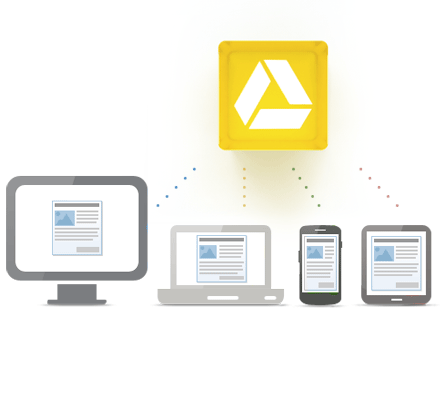
Access everywhere

Google Drive is everywhere you are—on the web, in your home, at the office and on the go. So wherever you are, your stuff is just...there. Ready to go, ready to share. Get started with 5 GB free.

Google Drive is available for:
  • PC and Mac
  • Chrome OS
  • iPhone and iPad (coming soon)
  • Android devices


Store your files in a safe place


Things happen. Your phone goes for a swim. Your laptop takes an infinite snooze. No matter what happens to your devices, your files are safely stored in Google Drive.


Go beyond storage- Collaborate

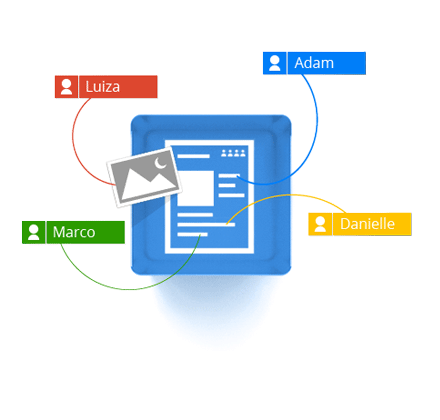
Google Drive lets you do more than just store your files. Share files with exactly who you want and edit them together, from any device.

Google Drive gives you instant access to Google Docs, a suite of editing tools that makes working together better—even when your teammates are miles away.


Get 5 GB for free

Get started with 5 GB free space. Upgrade to 25 GB for less than $2.50 a month, and you can store practically everything for next to nothing.


You Can also download Google Drive! Yes, there is an executable file of Google Drive. You can install it on your PC. Google Drive will let you synchronize your files between your PC and online storage. 


Stay with Marks PC Solution to get more interesting IT topics!
Free counters!